
English
Two-factor authentication (2FA)
Protect your account in the game control panel by enabling two-factor authentication (2FA). Our panel is based on Pterodactyl and supports time-based one-time passwords (TOTP), which work with popular authenticator apps and password managers.
Supported apps include Google Authenticator, Microsoft Authenticator, Authy, 1Password, Bitwarden and many others.
What is 2FA (TOTP) and how it works
2FA adds a second step to logging in:
- First, sign in with your e-mail and password.
- Then, enter a six-digit code from your authenticator app. The code refreshes every 30 seconds.
What you'll need
- A smartphone or device with an authenticator app installed
- Any TOTP-compatible app: Google Authenticator, Microsoft Authenticator, Authy, 1Password, Bitwarden, etc.
- Access to your game control panel account
Enable 2FA in the panel
- Sign in to the game control panel.
- Click your avatar/e‑mail in the top-right corner or open the "Account" page directly.
- Go to the "2FA" section.
- Click "Enable 2FA".
- Scan the QR code with your authenticator app (or use the secret key for manual setup).
- Enter the six-digit code from the app into the verification field and your password in the field below and confirm.
- Save the recovery codes shown by the panel. Download or copy them to a secure place. These codes let you sign in if you lose your authenticator device.
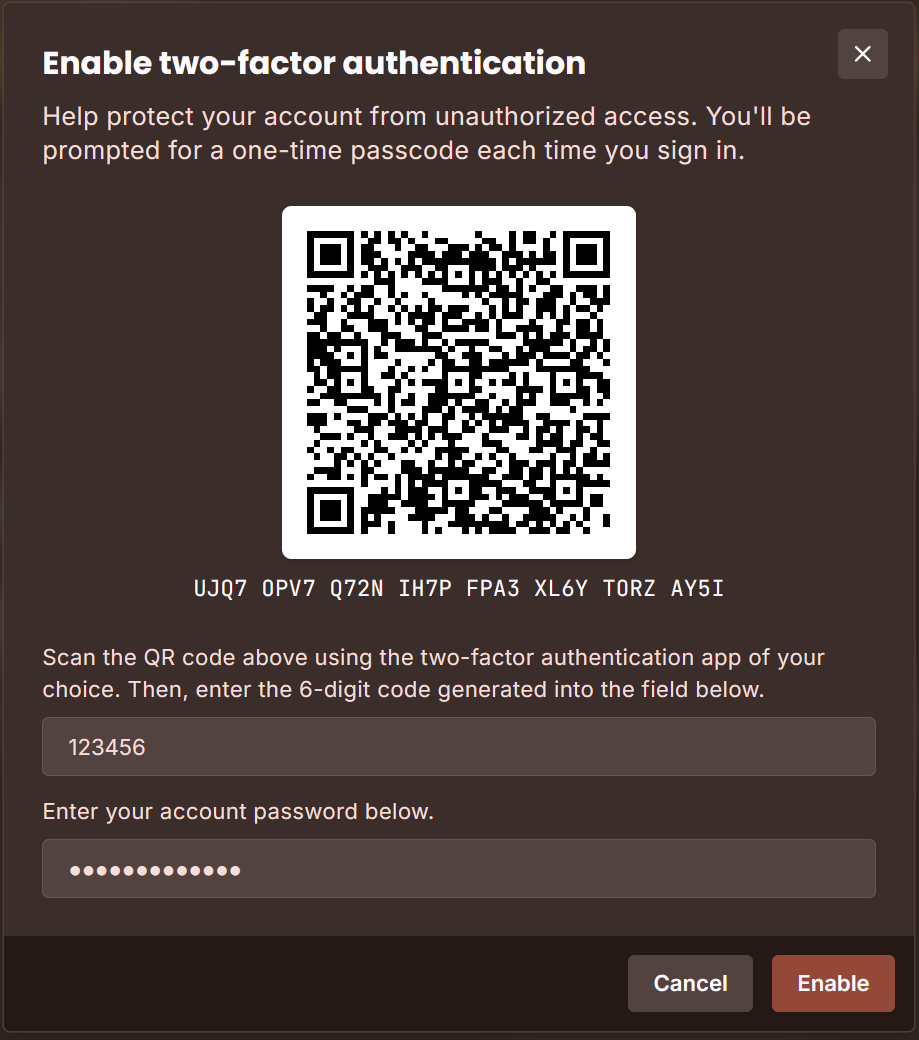
After closing the recovery codes window, 2FA will be active on your account.
Setting up Google Authenticator
- Install Google Authenticator from the App Store or Google Play.
- Open the app and tap "+" → "Scan QR Code".
- Point the camera at the QR code shown in the panel's 2FA setup screen.
- Ensure the method is TOTP (time-based) and 6 digits (usually set by default).
- Enter the code displayed in the app back in the panel and confirm.
Using other apps (Microsoft Authenticator, Authy, Bitwarden, 1Password)
- Open your authenticator app and add a new account/token.
- Choose to scan a QR code and scan the code displayed in the panel.
- If scanning isn't available, choose manual entry and paste the secret key shown in the panel.
- Enter the generated six-digit code in the panel to finish setup.
Managing 2FA
- Disable 2FA: If needed, you can disable 2FA in the same "2FA" section after confirming with a current code.
- Multiple devices: You can add the same token to multiple personal devices while the QR and secret are visible. Treat every device as sensitive.
Important security notes
- The displayed code changes every 30 seconds. If the code isn't accepted, wait for the next code and try again.
- Ensure the device running your authenticator has the correct time (enable automatic time sync) so codes match the server time.
- Never share your secret key, recovery codes, or screenshots of the QR code.
- If you lose access to your authenticator and don't have recovery codes, contact our support team for help after a simple identity verification.
Conclusion
Enabling 2FA significantly strengthens your account security. Even if someone learns your password, they will not be able to sign in without access to your authenticator device or recovery codes.